
Working with imports comes naturally to most of us. I have written about various aspects related to this many times.
The examples below.
Today I will pay attention to where the file is saved.
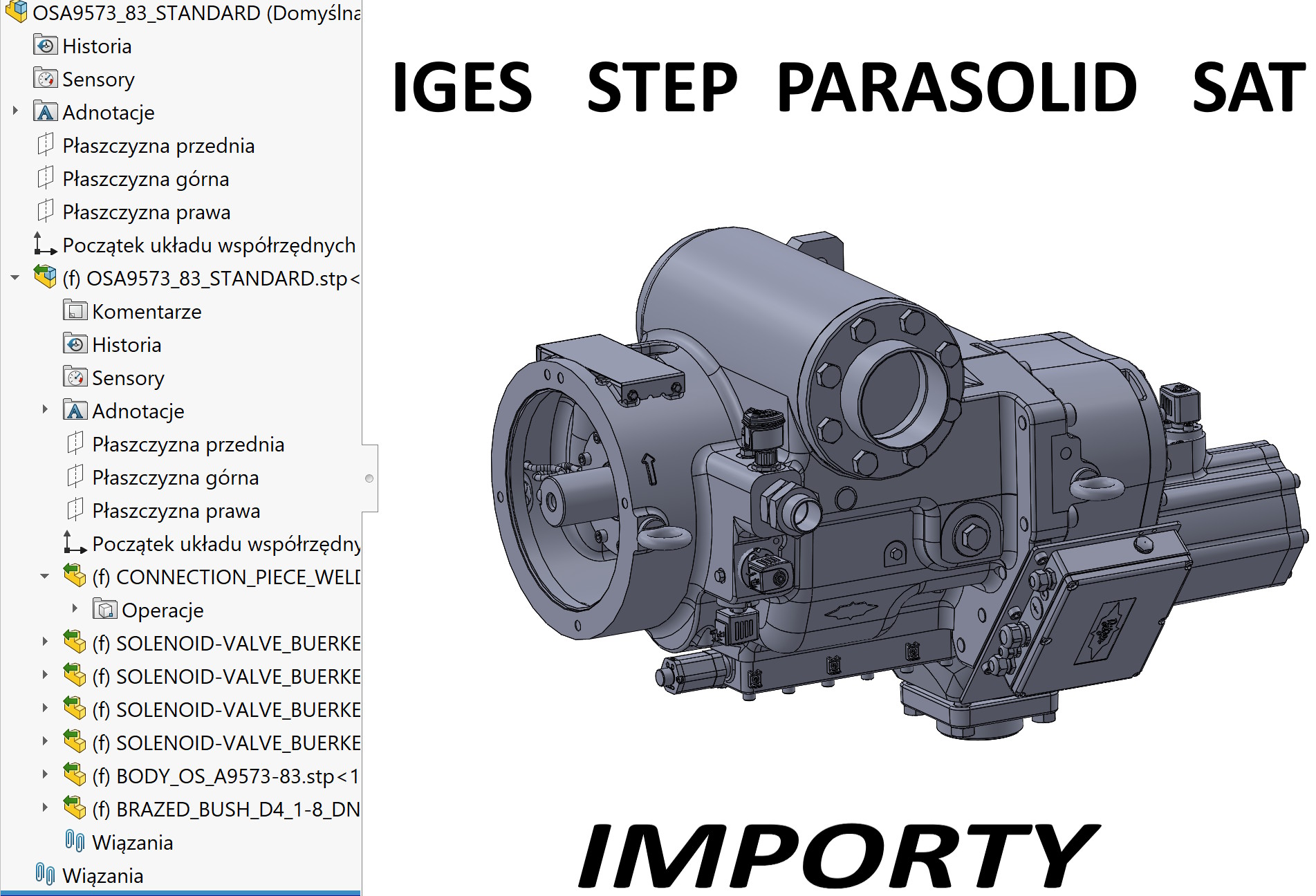
Well, when we download import files, we often save them to desktop.
Imagine now, that we are opening the file deposit (run away, Step, Sat, Parasolid). Of course there are different options – I mean with or without 3D Interconnect and that also affects the files. But more on that in a moment.
When opened, the program creates temporary files in place of, where the imported file was saved.
- Import STEP/IGES:
When you open a STEP file as an assembly, SOLIDWORKS generates temporary part files for each solid.- The names of these files contain $ (e.g. part1$1.sldprt).
- $ By default in SOLIDWORKS in, that the file has not been saved by the user yet - it is in temporary memory.
- Why $?
Symbol $ is used by SOLIDWORKS to distinguish temporary instances from saved files.- If you save the assembly, all parts will be saved as normal .sldprt and symbol files $ will disappear from the name.
- If you close without saving, files $ will be deleted.
Difference between classic import and 3D Interconnect.
- Classic import (bez 3D Interconnect)
- SolidWorks converts STEP/IGES to native .sldprt and .sldasm files.
- Creates temporary symbol files $ (e.g. part$1.sldprt).
- Only after saving the assembly and parts $ disappears, and the files become permanent.
- 3D Interconnect enabled
- SOLIDWORKS does not create temporary files $.
- Instead, STEP/IGES (or other formats like CATIA, NX, Believe, Inventor) are directly connected as references.
- In FeatureManager you see the "link" icon - means, that the part/assembly is associated with the original file.
- You can work on this file, but until you decide to break the link, SOLIDWORKS does not save local .sldprt from $.
It is worth recalling on this occasion ADVANTAGES 3D Interconnect:
- No duplicates or files $ – cleaner workflow.
- Source update – if the client changes STEP, you can refresh the link and the submission will update.
- Support for many CAD formats – not only STEP/IGES, but also native formats of other systems.
And now for contrast DEFECTS / LIMITATIONS:
- You do not have full geometry editing - as long as the link is active, part is treated as an external reference.
- If you want e.g. rebuild the surfaces, you have to do break the link → then SolidWorks will save the normal .sldprt (no more $).
- Automation (e.g. macros, custom properties) only works on files saved in the native format.
summarizing.
Where the imported file is saved is important, because the component parts of the assembly will be saved in the same location. For large assemblies with thousands of components you can imagine, what will happen on the desktop. Therefore, before opening, always put the import file into a specially created folder! Moreover, remember, that:
- Bez 3D Interconnect → temporary files appear from $.
- Z 3D Interconnect → you are working on a link to the original file, without $.