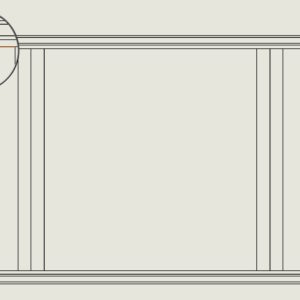
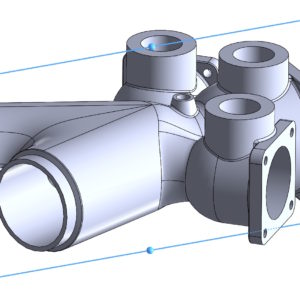
Having doubts about the symmetry of the detail, you can use the Symmetry Checker tool. The program will display Asymmetric walls in the results – if they occur, which proves it, that, however, the 3D model is not fully symmetrical. There can be two types of asymmetric walls: cutting and non-cutting. Cutting ones are these, which is intersected by the plane indicated as symmetry, a...
Author: Paul (Paul Kęska)
Dimensioning in drawings with a selection in the select another style
Dimensioning is one of the main activities performed in the technical documentation of parts. To illustrate, here is an example. The dimensioning of the edges is somewhat problematic, which are located “deeper” and are covered by the longer edge that is closer. Of course, these are several options, e.g. ability to hide parts/objects. You can use filtering – this is another method. You can finally turn the model ...
Classic fillet vs. surfaces
There are such situations, where the choice of tool is important. An example would be a fillet in a tee-style element. Any option not to use, it won't work out well… In such an arrangement, it can be finished in an elegant way? Using surfaces. You need to cut out a fragment and use a surface extrusion or surface by border, you can create....
The latest SOLIDWORKS handbook 2025 soon available!
I am pleased to inform all, that I am finishing work on the latest SOLIDWORKS manual 2025 – part modeling | Assemblies | Drawings. SOLIDWORKS was released very late this year 2025 SP0, which unfortunately resulted in this, that I didn't make it before Christmas as planned. But I'm making an assumption, that it would be better to refine this e-book, than to release it in a hurry....
Manipulate 3D sketch handles in 3D
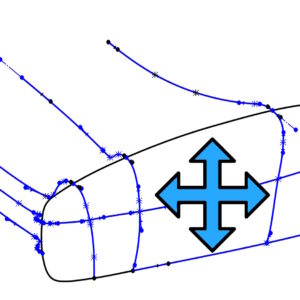
When you draw with a 3D sketch in 3D, you can divide the window into two or four. In particular, it makes your work easier if you draw with a Spline and manipulation is a bit difficult. Additionally, by right-clicking on a Spline point, you can enable the Show sketchbook triad option, which makes it easier to move such a point. Splitting the window results in this, that by grabbing the spline handle....
Universal connection – rarely used binding
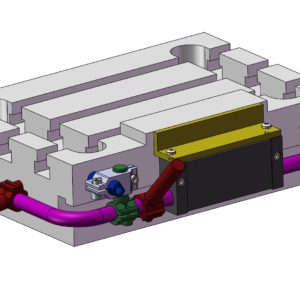
The Universal Coupling found on the Mechanical Mates tab allows you to make the rotation of one component depend on the rotation of another. What is important, the connected elements do not have to be concentric. E.g, you can link the movement of one lever to the movement of the other. But the most useful thing is the gimbal linkage. Interestingly, you can enable the Define connection point option in the binding. She is responsible for....
Dividing line vs. extrusion with offset from the surface
When preparing models for visualization, we often perform certain operations, to make this task easier. I'll show you today, how you can make colorful inscriptions on the surface faster. It's not about the so-called. decals – i.e. overlaid graphics with a specific type of mapping, only physical edges. If you use a dividing line to make the inscription, you have to manually select the walls to be bounded by edges. Often these are....
Easier identification of replaced dimensions in the drawing
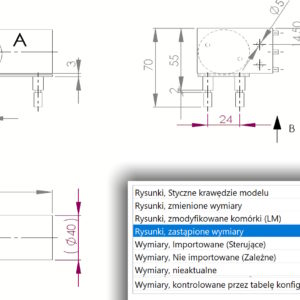
You can now more easily find dimensions with changed values in drawings. In System Options > Colors You can set the highlighting color for replaced dimensions in the drawing. However, in the drawing template (or in a specific drawing – if once) you need to enable it in Document Properties > Dimensions option: Highlight the replaced dimensions with a different color.
Incompatible items – cannot be saved in SOLIDWORKS
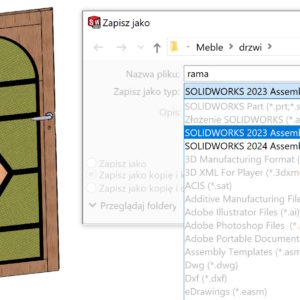
SOLIDWORKS 2024 as well as SOLIDWORKS 2025 allows you to save files up to two versions back while maintaining the history of operations. Do you know, what will happen, if you try(a) save e.g. part from SOLIDWORKS 2025 to version 2023, which contains an operation, which was not available in that version? Below is the answer to this question. We will receive the following message: Incompatible items –...
Copying parameters of one study to another in SIMULATION
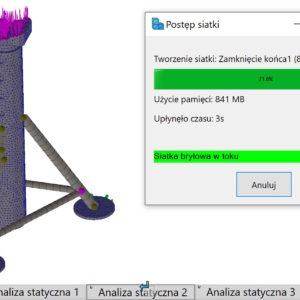
When defining a new study in SOLIDWORKS Simulation, you must immediately select the associated configuration. Of course, this is easy to miss. Even, if it is not related to a wrong configuration, I will show you how to copy parameters from one study to another. It's simple. Activate the study, from which you want to copy: reinforcements, load, contacts or mesh. Drag individually or all...