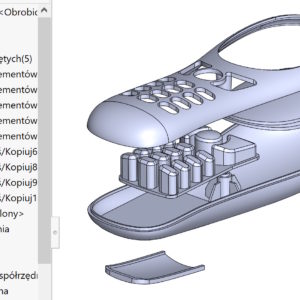
We use various effective techniques to model advanced shapes. However, you cannot always use different SOLIDWORKS features interchangeably. An example is drawings on the surface, where you need to draw something around. This has applications in bottle design, in the processing of scanned elements, in repairing rounding (by filling with a surface) and many other areas. If you draw a sketch on a plane and perform a Projection....
Author: Paul (Paul Kęska)
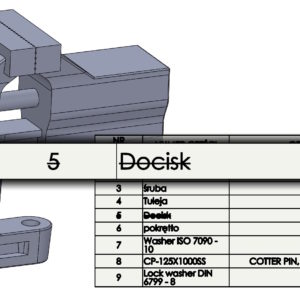
Cross out the missing item in the BOM table
In the BOM table, both in assemblies and in drawings, you can choose to strike out the missing item in the material list option. It works this way, that the element removed from the assembly will be visible in the table with a strikethrough. Select the appropriate option when inserting the BOM table. Detailed options include:. numbering, whether it should be continued or replaced...
Visualize – when opening: Appearance vs. Component/part
With version 2024 SOLIDWORKS has been deprived of the PhotoView add-in 360. Certainly, for some users, the multitude of Visualize options is overwhelming, But this allows you to get more realistic visualizations. Today, I will compare two options during the opening. 1. Component/part/object allows access to the full assembly structure or multi -manual part. Pluss certainly include the possibility ...
Additional useful options in the Move/Copy operation
The Move/Copy operation is widely used in modeling multibody parts. The rotation and carrying handle was changed some time ago. In SOLIDWORKS version 2023 further changes appeared. Well, numerical quantities defining rotation or transfer have become parametric! Therefore, they can be configured or controlled by equations. The option is added in the tab..
Difficult dimensioning in drawings and available options
Everyone, whoever makes drawings in SOLIDWORKS has certain observations. Thin-walled elements or such will be particularly problematic, where there are lots of invisible edges. The problem appears when, for example:. dimensioning, because the program tries to attach a dimension to each edge. However, you can remedy this by turning off the options below – i.e. selecting in ULU and ULW modes. Additionally, you can increase....
Break in the corner, that is, the impact of the Refer to endpoint option
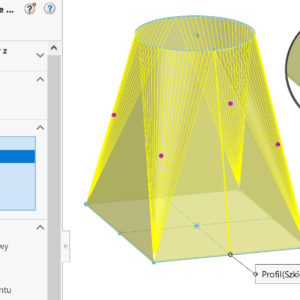
In lofted sheet metal sections as Bent between a circle and a rectangle, if you control the Number of bends, there may be a strange pause. It is a consequence of this, that the upper arc converges to one point at the bottom. Taking into account the thickness, radii and the number of bends, these walls simply do not fit there. However, there is an option to Refer to endpoint, default....
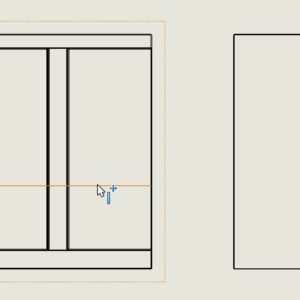
Re-inserting the sketch on the plane
Inserting a sketch on a plane is one of the basic activities, from which we start modeling. It happens often, that we do not click the Sketch icon right away and this action must be repeated. I am aware of, that after selecting a plane, you can immediately activate some sketch commands (circle, line etc.), but many people include a sketch, to access mouse gestures...
Modify cut list IDs
For each cut list in the cut list folder, you can generate cut list IDs based on cut list attributes. This also applies to multi-body parts that are not a typical welded structure! So you can modify identifiers e.g. when designing furniture or plastic parts. There is one condition – you need to create a list of items...
FilletXpert – Change and Corner
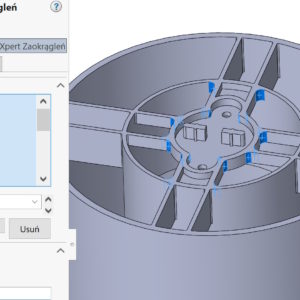
At the very top in the Fillets window you can choose between options: Manual and FilletXpert Fillets. There are, among others:. Change and Corner tabs. I'll show you below, what are they for?. Change – is an option that allows you to display roundings with different values in one window. Additionally, you can choose a particular one, e.g. wall, which was rounded off as one of many....
external references – filter by state
In contextual design, there are several statuses of external references. The most popular is, of course, the active tagged context – > after the part name. However, there are other symbols, including: broken reference marked “x”, locked with marking “*” or out of context “?” . Break Reference and Lock Reference in Assembly When viewing references of the entire assembly (after right clicking....