
Today I will present 3 ways to copy and move geometry in a SOLIDWORKS sketch (which most users do not know).
Working with sketches is the foundation of modeling in SOLIDWORKS. Yet many users only use basic methods for copying and moving sketch entities. Meanwhile, the program offers several quick and very convenient ways, which can save a lot of time - especially with repeatable geometry.
In this post I will show you 3 practical techniques, that run in SOLIDWORKS 2025 (and earlier versions), along with their advantages, limitations and common pitfalls.
1. Ctrl + dragging sketch elements (the simplest copying)
This is the most convenient way to quickly duplicate a sketch.
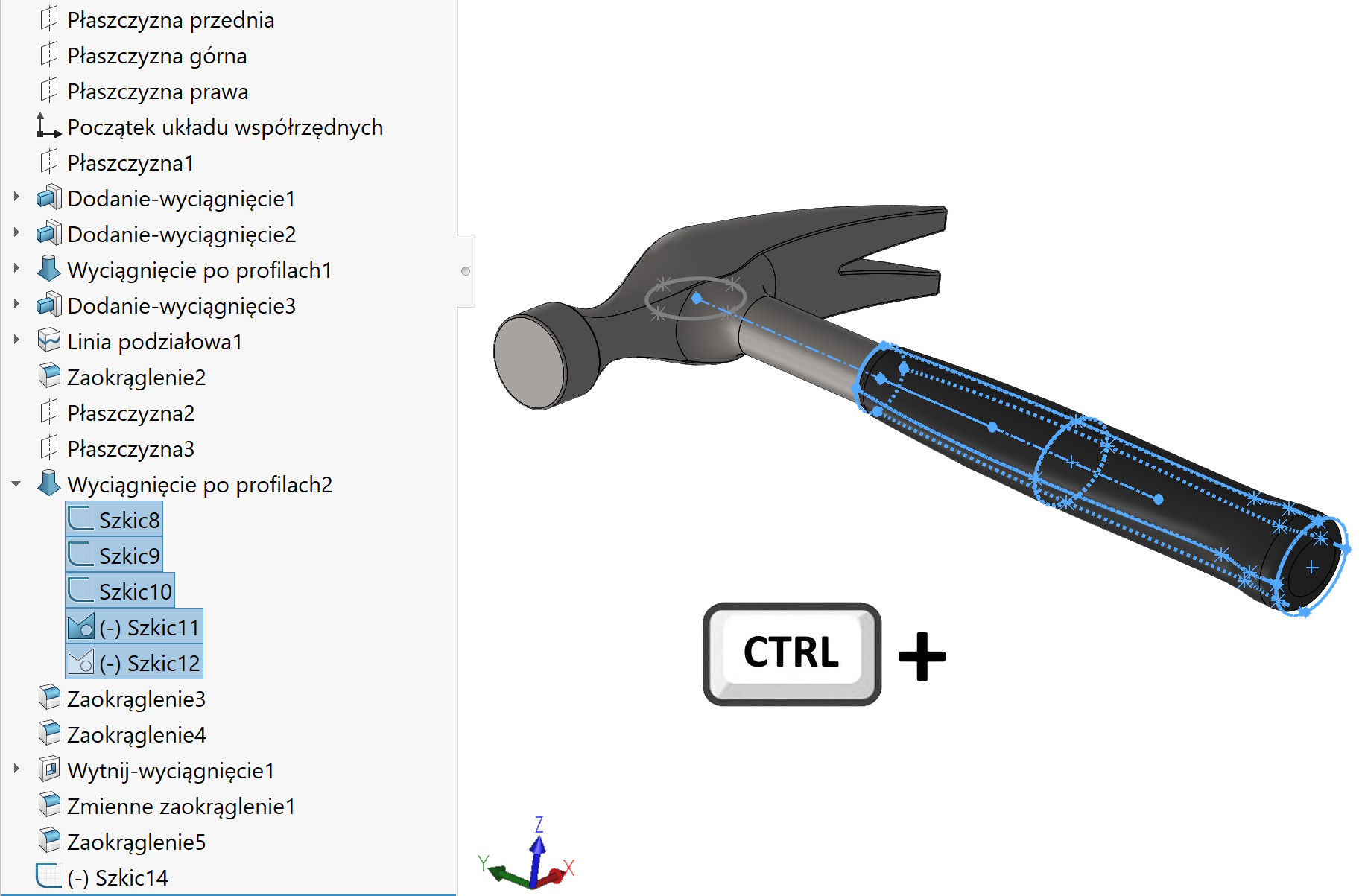
ATTENTION! Works in both sketch editing, as well as outside editing. However, in an edited sketch you can select elements to copy (e.g. frame), and the approved sketch is copied in its entirety. But it's important – to copy the whole thing – it must be selected from the tree not the graphics window!
How it works?
- Select sketch entities.
- Hold Ctrl.
- Drag your mouse to a new location.
What is copied?
- line, bows, splines, points, circles, rectangles etc.
- internal relations (between copied elements)
- dimensions internal (if they apply only to selected geometry)
Which is NOT copied?
- relations to external geometry
- dimensions associated with items outside the selection
When to use?
- quick duplication of sketch fragments
- creating repeatable elements without patterns
- copying geometry between sketches in the same file
2. Copy Items - The most controlled method
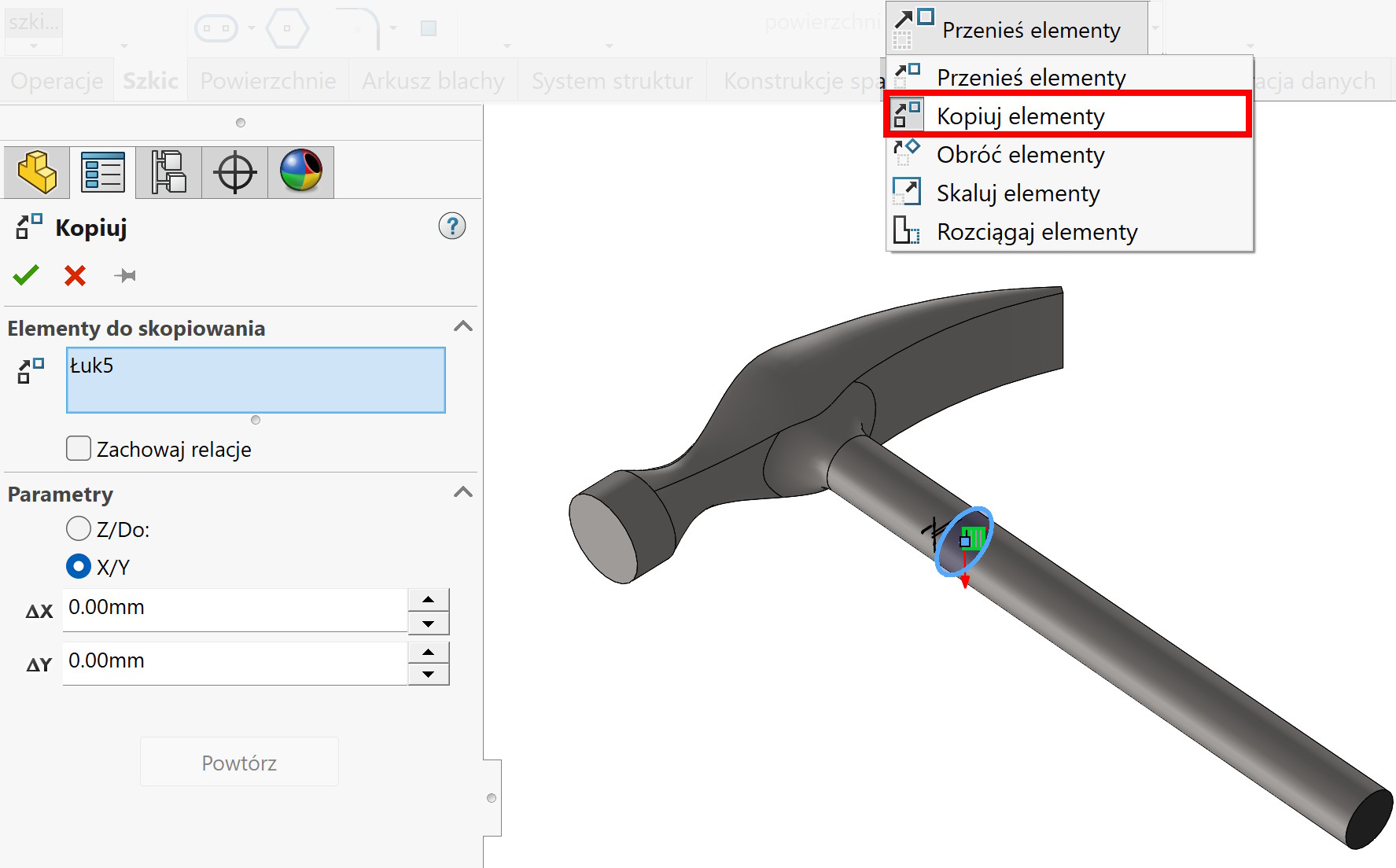
Available in Tools > Sketch tools > Copy items or from the drop-down list on the card Sketch.
Advantages:
- you can point base point
- you can paste in exact place
- you can copy to another sketch or another part
- internal relationships are preserved
Disadvantages:
- slower than Ctrl+drag
- does not copy external relationships
When to use?
- when you need precise pasting
- when you copy geometry between documents
- when you want to avoid accidental shifts
Also read:
3. Ctrl+C > Ctrl+V - classic copy/paste.
Many users don't know, that this also works in sketches.
How it works?
- Select the geometry > Ctrl+C
- Click on the destination (flat wall or plane) > Ctrl+V
Advantages:
- works between parts
- works between the assembly and the part
- runs between different SOLIDWORKS instances, but Pasting from a newer to an older version will not work!
- you can also copy 3D sketches
Disadvantages:
- lack of control over external relationships
- sometimes requires manual ordering of dimensions
- copying from a newer to an older version does not work
When to use?
- fast copying between files
- transferring geometry from sketch libraries
- copying sketches from reference models
Leave a Reply