
Admit, that you have seen different versions of the same files many times and had (out) difficulty assessing differences.
This is a normal thing in development departments, that further versions of the product are being created. As long as a given company still uses PDM, then you can describe it somehow, But otherwise it remains to be saved with new file names.
However, at some point these versions must be compared and evaluated, what has changed in them.
In this case, the use of the tool remains Compare available in the menu Tools. There are several comparison options, including: features, geometry, properties and separately drawings (DrawCompare).
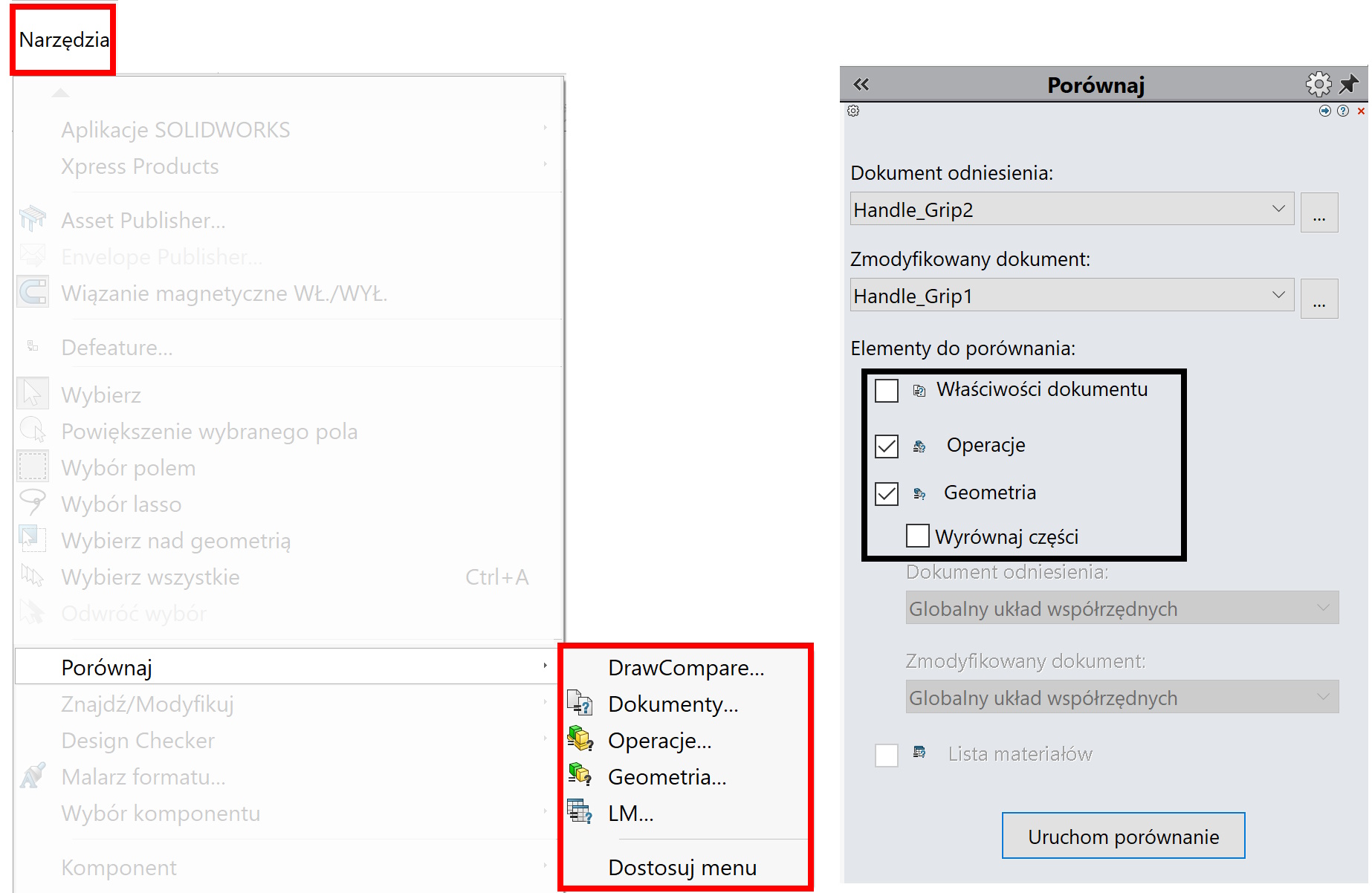
After selecting a specific category, you should load two files and choose Start a comparison.
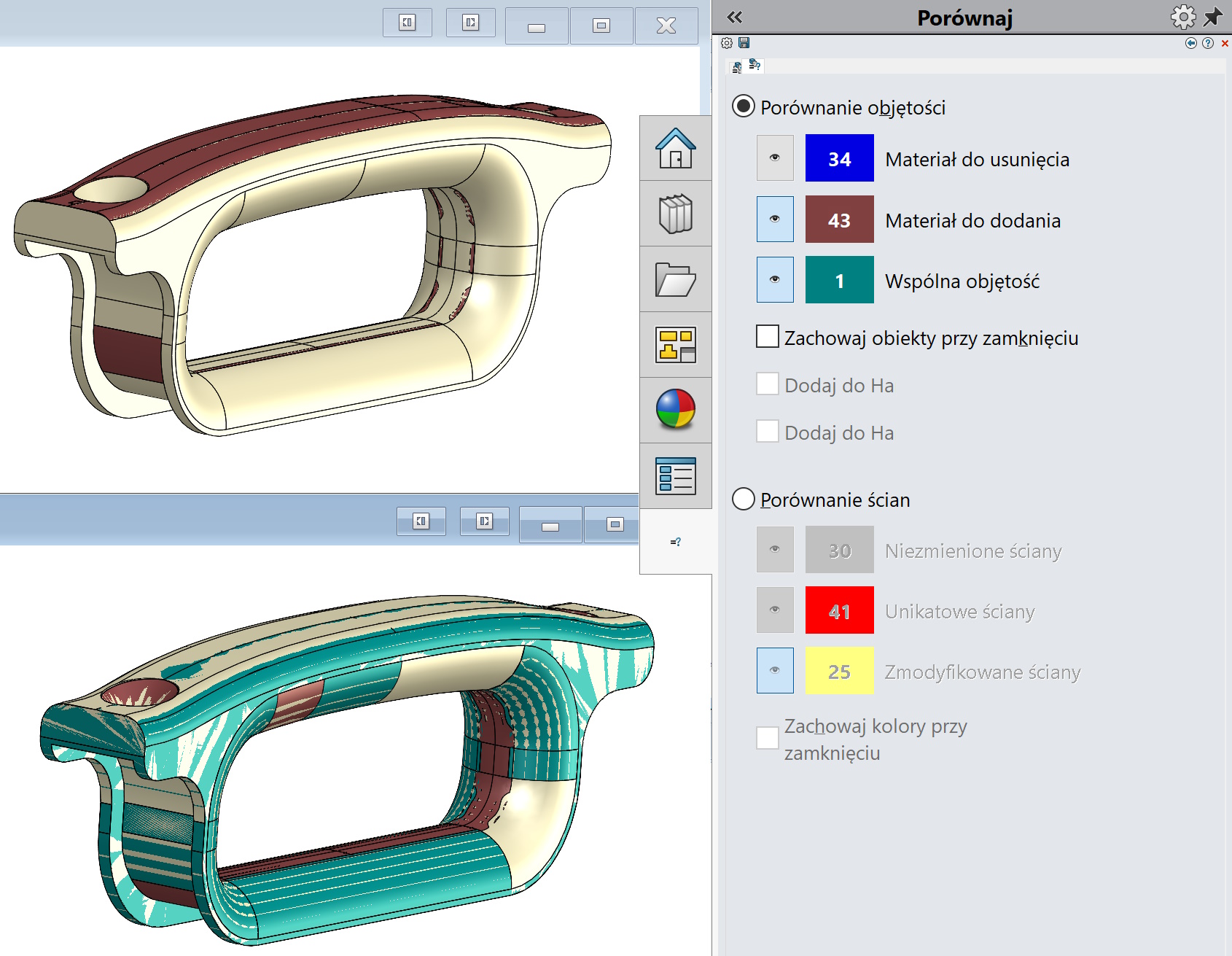
If the geometry was compared, then you can display what has been added or removed, or you can compare the walls.
In the case of comparing surgery, Of course, the file must come from Solidworks. Operations and both parts will be displayed in the result list, and those missing in a given version are marked with a red dot. 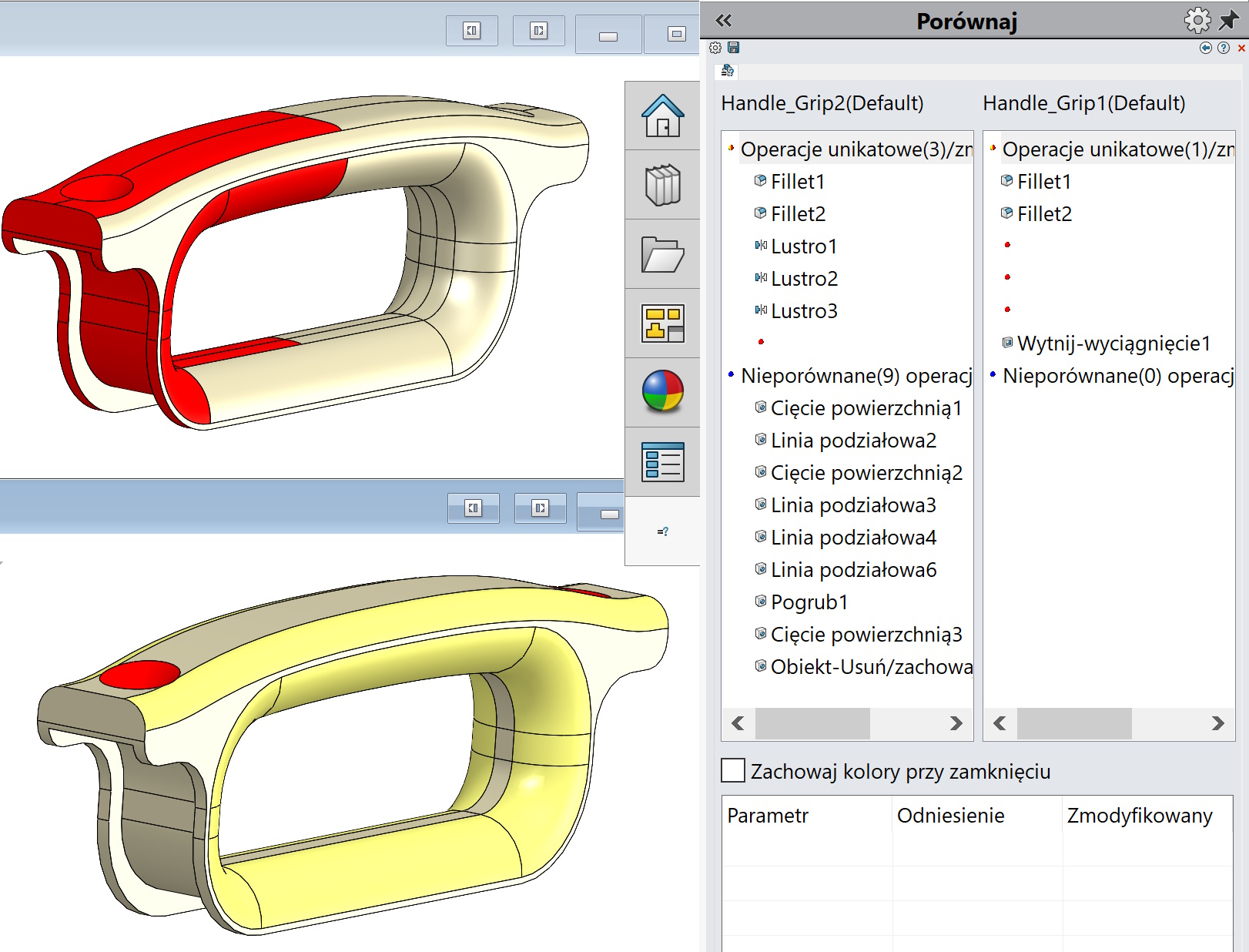
Using the back button, you can return to the settings of a given comparison, and in the settings define the options globally. Finally, you can generate a report – As in any other case, the program uses MS-Offica for this purpose (Word‘a).