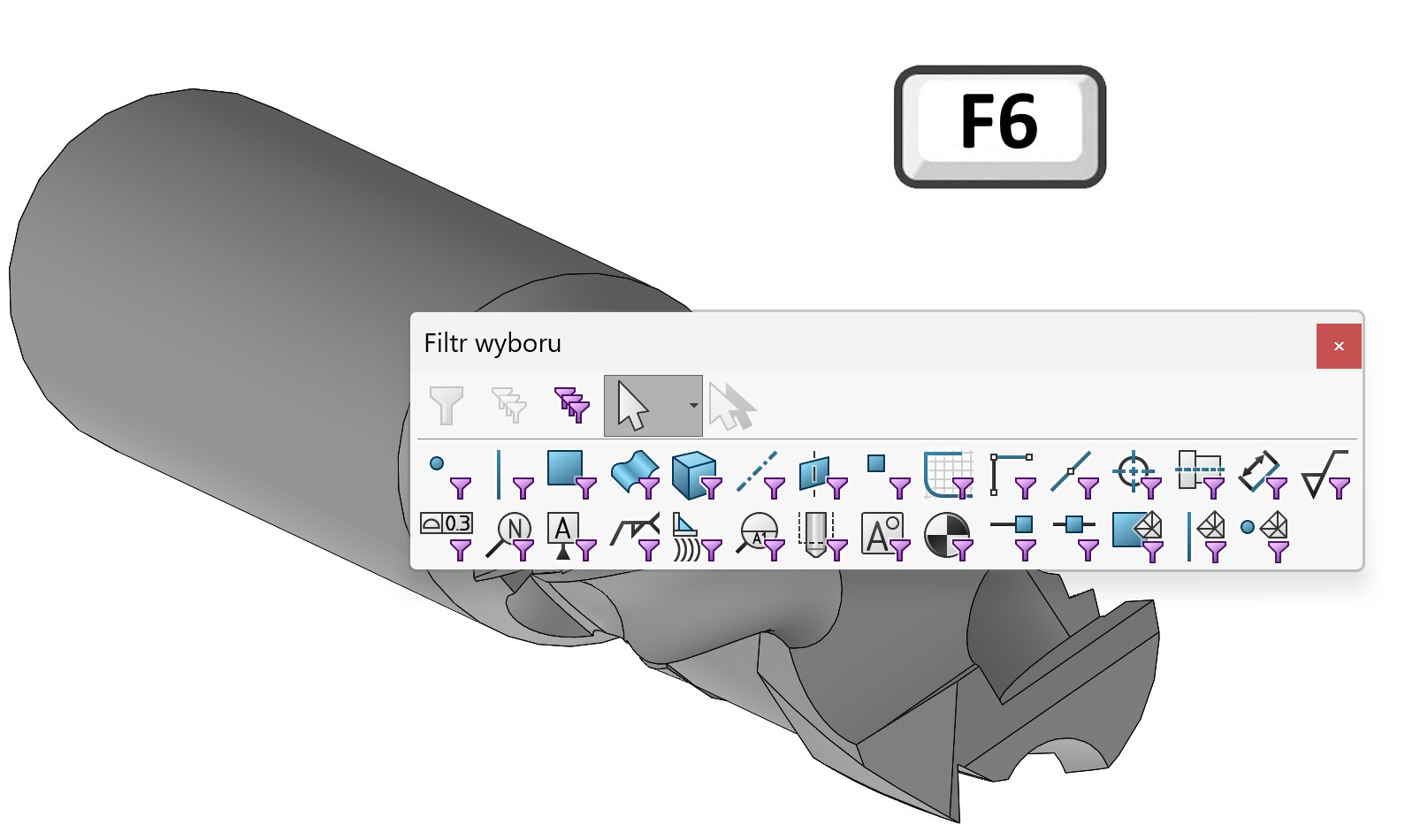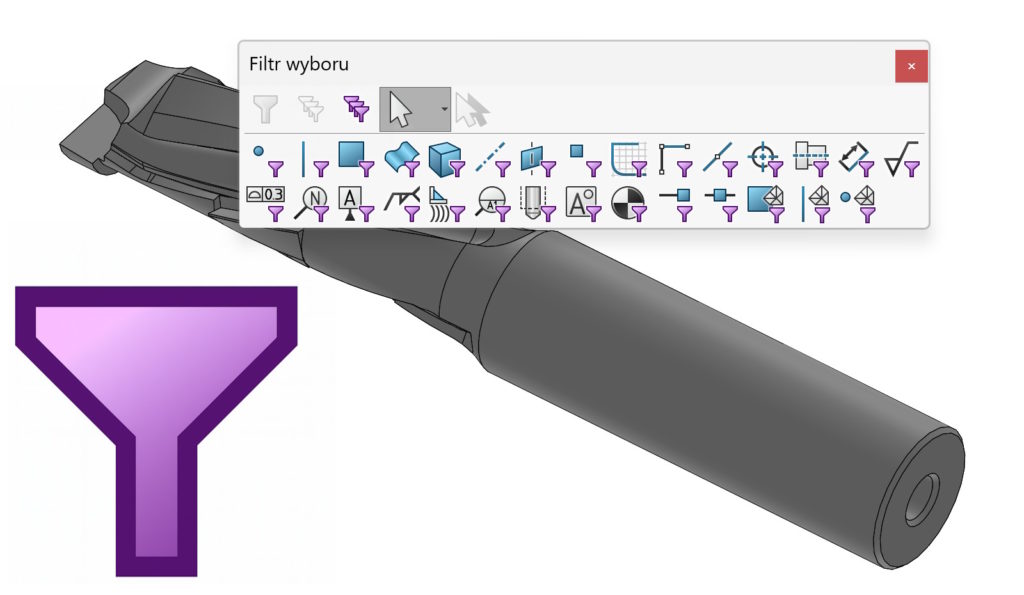
Filters allow you to select a specific type of element, e.g. edges, wall, axes, points etc.
We turn on the filter bar by pressing the button F5 – jest to wbudowany skrót.
But have you accidentally turned on a shortcut using the keys? (most often) X, V or E?
Activation is indicated by a visible symbol next to the cursor. Of course, after activating a given filter, my options are limited. Therefore, it is worth managing it consciously.


F6 Shortcut in SOLIDWORKS - Switch selection filters.
Among the lesser known, but extremely practical keyboard shortcuts in SOLIDWORKS, The F6 deserves special attention. Its operation is simple, but it can significantly speed up work with a 3D model.
Switch selection filters.
Press F6 activates or deactivates selection filters, i.e. a set of tools to reduce, what can be selected in the graphics window - e.g. only vertices, only the edges, only walls etc.
How it's working?
- F6 turns on or off active selection filters.
- When filters are active, clicking on the model selects only these elements, that are compatible with the filter (e.g. only the edges).
- Turning off filters allows you to select any items again.
Application example
When working with a large assembly, where accidentally selecting a wall instead of an edge can be irritating, edge filter activation (with a key E) and subsequent quick switching of F6 allows you to efficiently control the selection.
The same applies to working with parts.